Managing addin at the organization level
These steps require access to Microsoft 365 admin center.
Installation
-
Got to Microsoft 365 admin center
-
In the admin center, in the left nav, choose Settings (1) and Integrated apps (2).
-
Select Get apps (3).
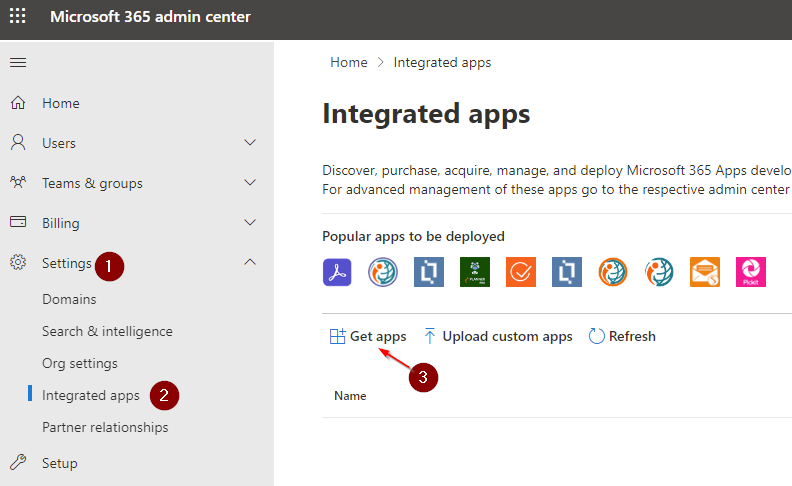
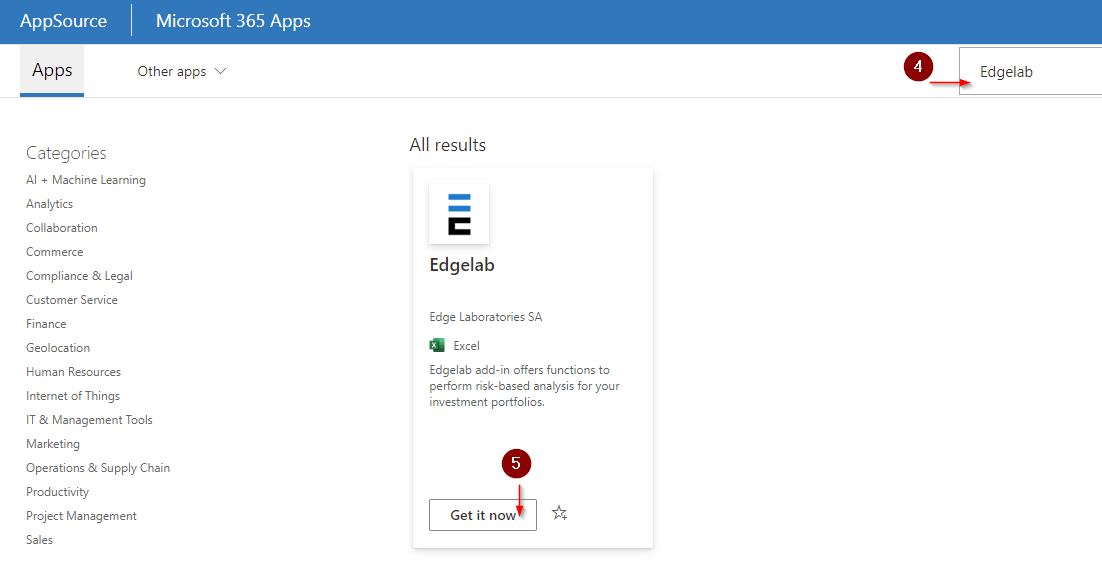
- Type Edgelab in the search box (4) and select Get it now (5).
-
Assign users and select Next.
-
Accept permissions requests. The app capabilities and permissions of the apps are listed.
-
Select Next to review the deployment and choose Finish deployment.
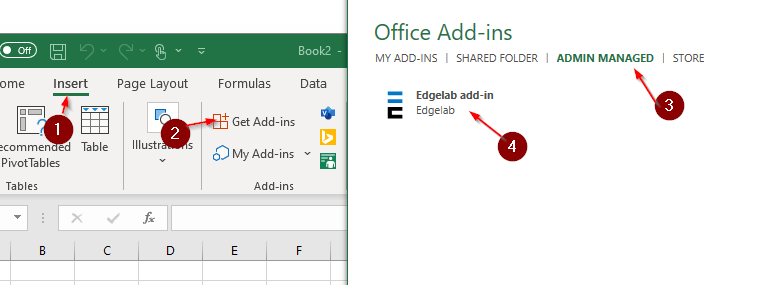
Depending on the end-user settings the Addin might be installed automatically. If it’s not the case, see if the addin is listed here: Insert (1) > Get Add-ins (2) > Admin managed (3) > Edgelab (4) and select the refresh button if the addin is not visible.
Removing the addin
-
Got to Microsoft 365 admin center
-
In the admin center, in the left nav, choose Settings (1) and Integrated apps (2).
-
Select Edgelab (3) from the list.
-
Select Remove app (4).
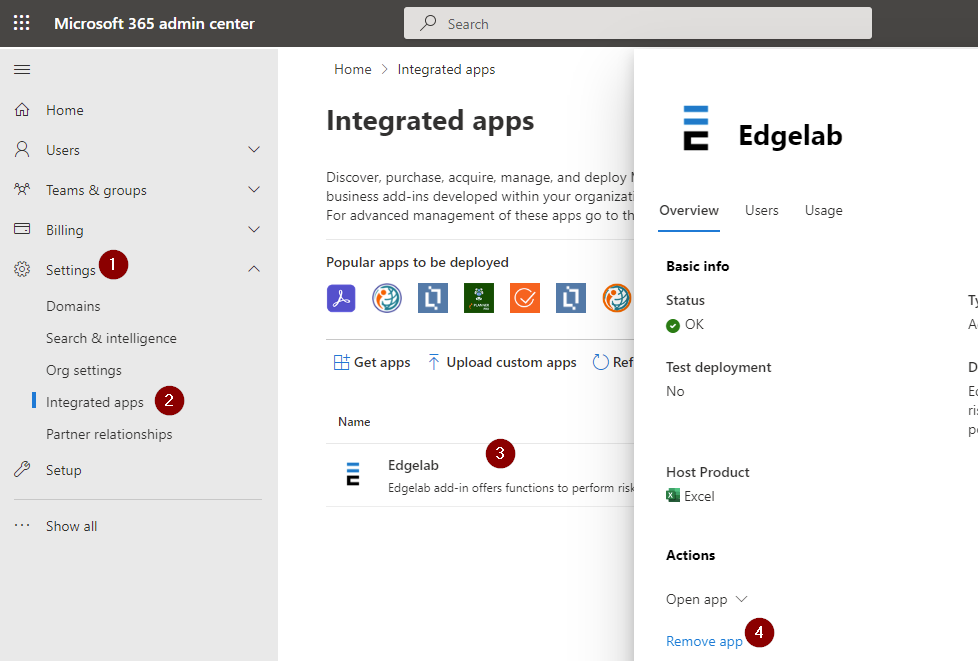
- Select Yes, I’m sure… and then Remove.