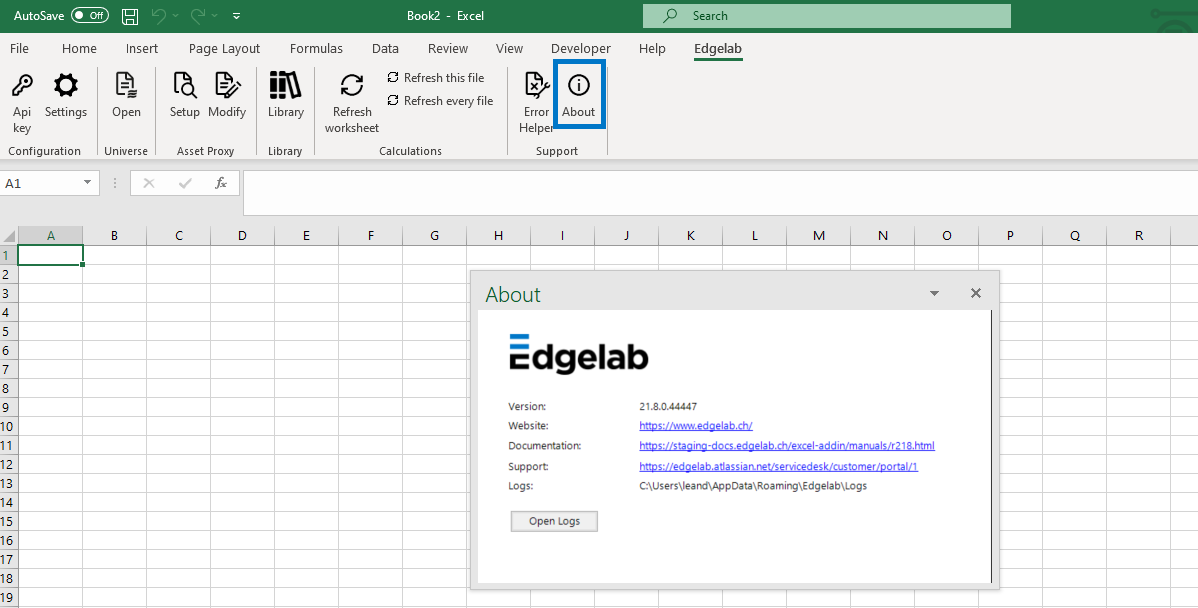
Ribbon
Configuration group
The Configuration group in the Edgelab tab contains buttons to set up your settings and proxy choice.
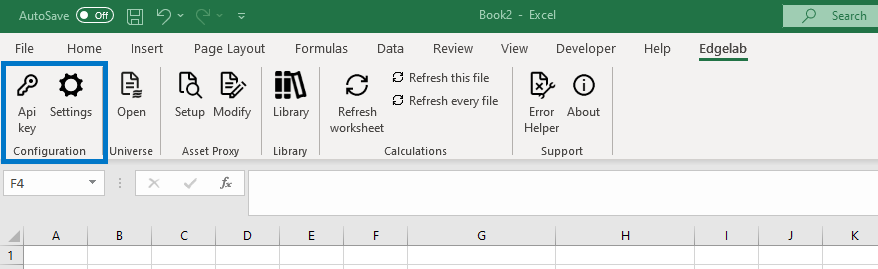
API Key: opens a dialog box to enter the API key and test its authentication. The key can be saved even if its validation fails.
Settings: opens a dialog box to parametrize the network proxy, the authentication method (API KEY or with EL account), the metal unit in which Commodity currency format (e.g. XAU) is expressed. There is also the error message helper box that is ticked by default. If it is unticked, then the feature is not activated.
On the network proxy settings:
- None: no proxy are set up and the request will go directly to Edgelab.
- System: all the requests will go through the local proxy setup on the machine. These proxies are usually parametrized by an IT admin and when a connection error occurs, this option should be preferred to a custom proxy.
- Custom: in this case, full control is granted on the IP address and port of the proxy. This option is intended for advanced users.
Universe group
The Universe group permits to monitor your Edgelab asset universe
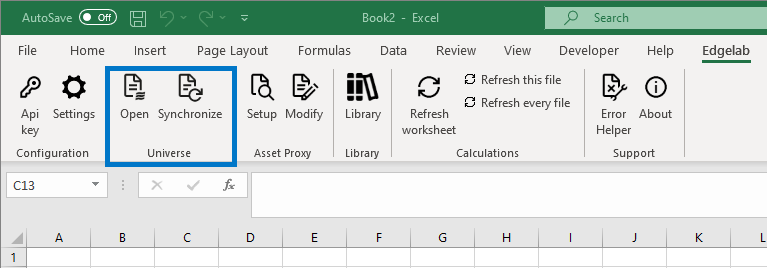
Open: opens the universe portal to access the asset universe. There, you can add and remove assets. UDFs are functional in the frame of the set-up universe. If you benefit from the automatic synchronization, you will have access to two universes: Main and ExcelAddin. The former is directly linked to our universe APIs and can be populated via manual synchronization. The latter is independent of any other services and can only be filled by assets used in the Add-in.
Synchronize: syncs up the universe to the spreadsheet. The latest updated version of your asset universe is then available for use. This button is only available if manual synchronization is activated.
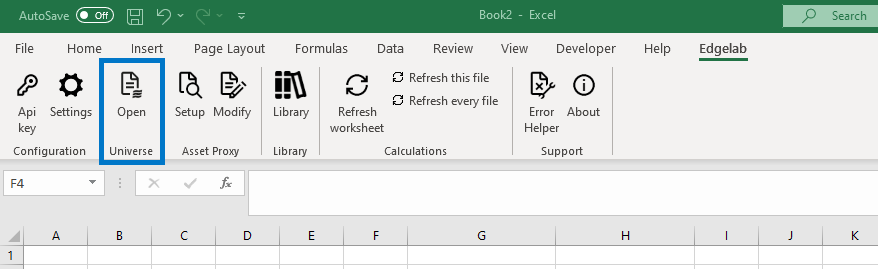
The above picture shows the ribbon when the automated universe management feature has been implemented. The synchronize button disappears and only the Open one remains. The reason is that once the assets are used in one of our UDFs, they are automatically synchronized to your universe. Note that there are up to 20 seconds (default) of waiting between each synchronization.
Asset proxy group
The Asset Proxy group embeds the buttons to interact with the asset proxy configuration file as well as the ability to open it up directly from the Edgelab ribbon.
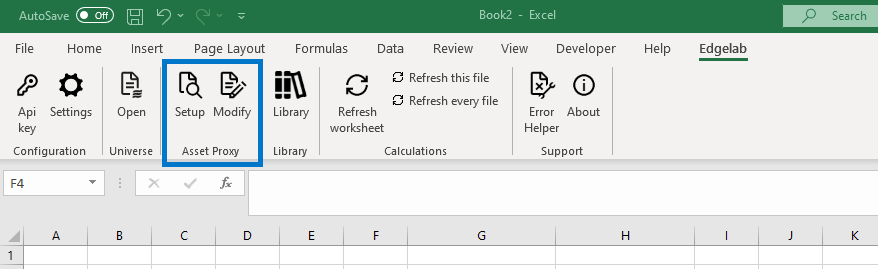
Setup: opens a dialog box in which the path to the configuration file is located. The browse button allows the user to select another asset proxy configuration file. The save button saves the currently selected file as the configuration file and the link "help on this feature" leads to the documentation on the asset proxy and configuration file. The path to the configuration file can be a cloud based url. This might come in handy if an excel file containing asset proxy needs to be shared. Just make sure that all the people working on the spreadsheet have the access to the cloud.
Modify: opens up the asset proxy configuration file.
Library
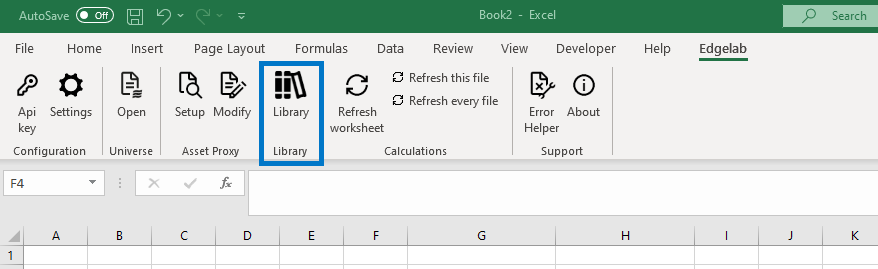
The "Library" group is a button that will open a side panel in which the templates and stress scenarios side panels are accessible.
Calculations group
The calculations group in the Edgelab tab contains buttons to refresh one or several sheets in the opened Excel files
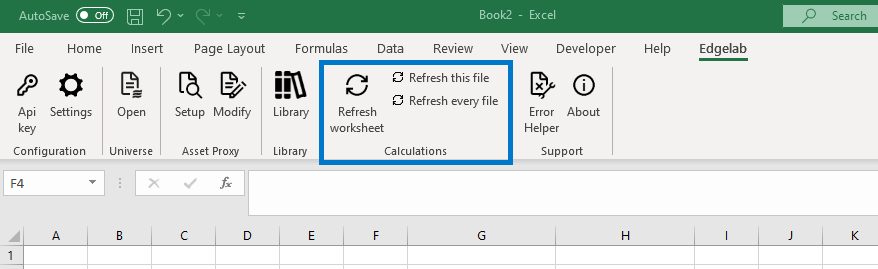
Refresh worksheet: refreshes the current worksheet of the currently displayed file.
Refresh this file: refreshes every sheet within the currently displayed file.
Refresh every file: refreshes every sheet within any of the opened file. This function may be time-consuming as it forces the recalculation of any opened file. It is also similar to the built-in function of a full refresh.
Support group
The Support Group in the Edgelab tab contains all the information about the installed version of the Edgelab Add-in.
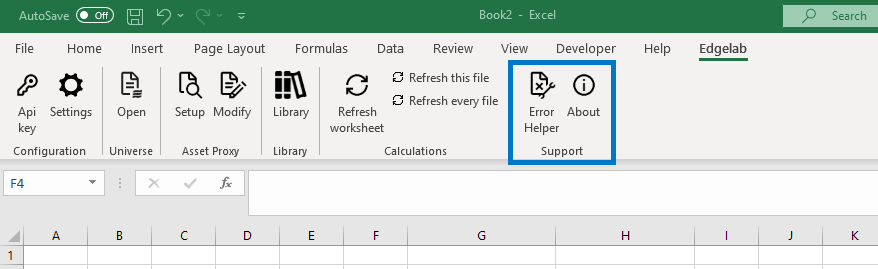
Error Helper: by clicking on this button, the error message ribbon appears on the side panel.
About: opens a window containing a link to the Edgelab website, a link to the Edgelab Add-in documentation, and a link to obtain support. Finally, it is possible to open the Add-in Logs.